X-GPS Tracker - Viewing Task on a mobile device

X-GPS Tracker - Viewing Task on a mobile device

This feature work and communication with your employees. Now you can remotely assign tasks to your employees.

The application will automatically notify the employee about adding new and changing existing tasks. For example, if you suddenly change the delivery address, you don’t have to call the driver, you can just update the task on the platform and the information will be instantly sent to the employee’s phone. At the same time, the employee will know for sure that his working status is visible on the platform, and the arrival time will be recorded automatically.
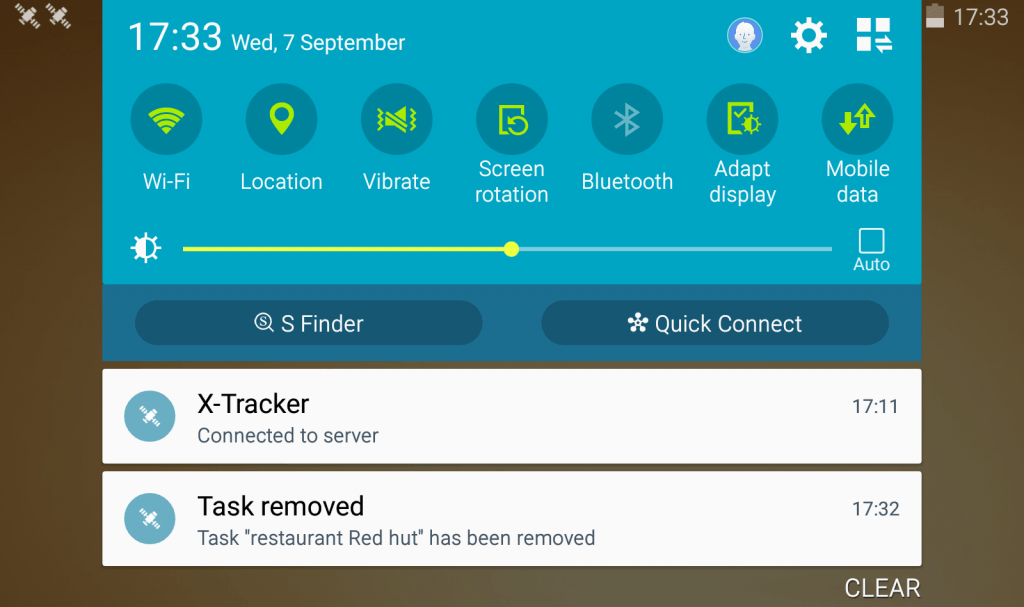
Push-notifications about new tasks and changing task’s status

When a manager assigns a new task or edits an existing task, the remote employee will receive a push notification on the smartphone or tablet.

The system also notifies the employee’s arrival to the task place and the process status, e.g. “arrived”, “failed” or “overdue”.

Detailed tasks description and a mark on the map

Employees can click on a new task notification and see the detailed information about it:

  • Title
  • Status (for example, “scheduled”)
  • Task address
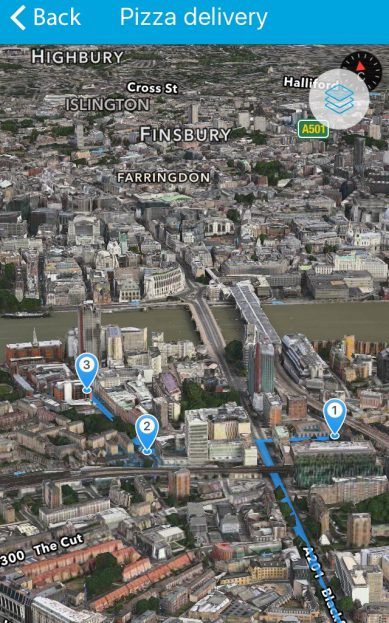
  • The route to the address and a direction based on the current location of the remote worker
  • Execution time and the minimum possible delay
  • Additional information on the task

Get an optimal route to the task location

Tap on an icon next to the task address and the system will get you the direction from the current location to the task point.

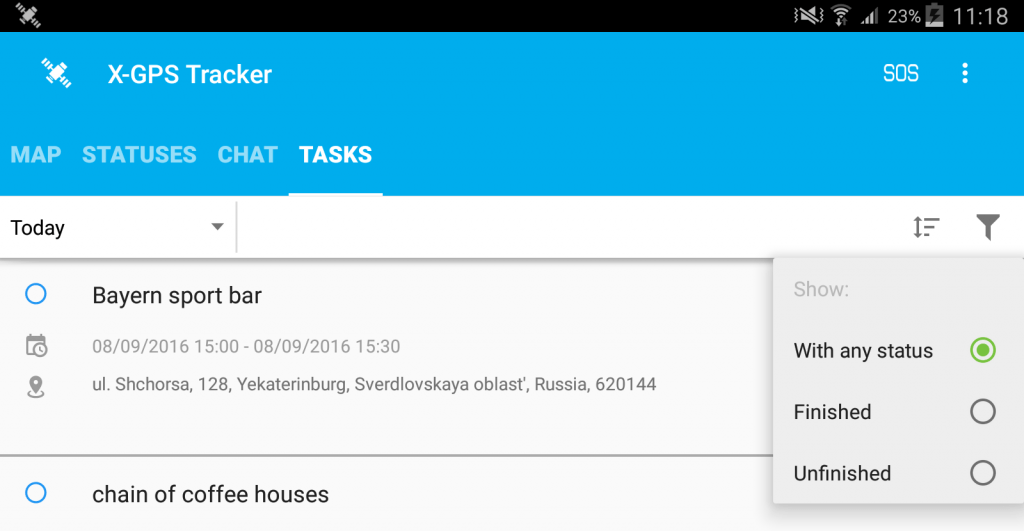
A tasks list on employee’s screen

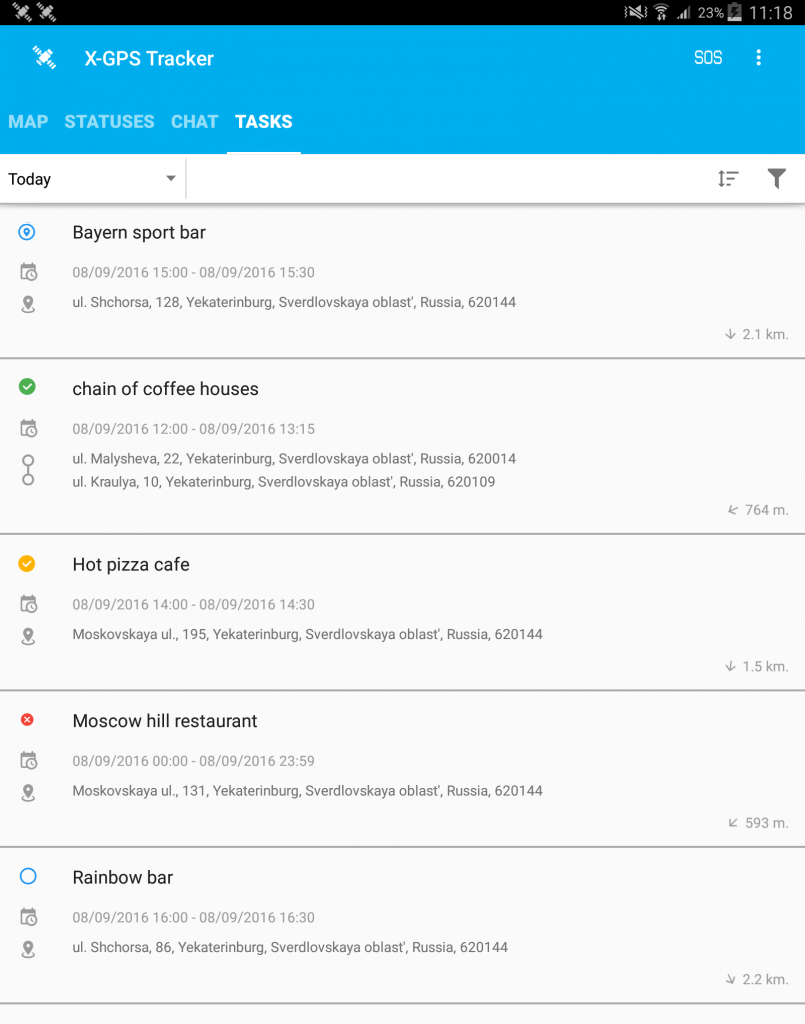
Choose the Tasks tab in the Tracker app to see the whole To-Do list. Each task has its process status: “assigned”, “overdue”, “completed” etc.

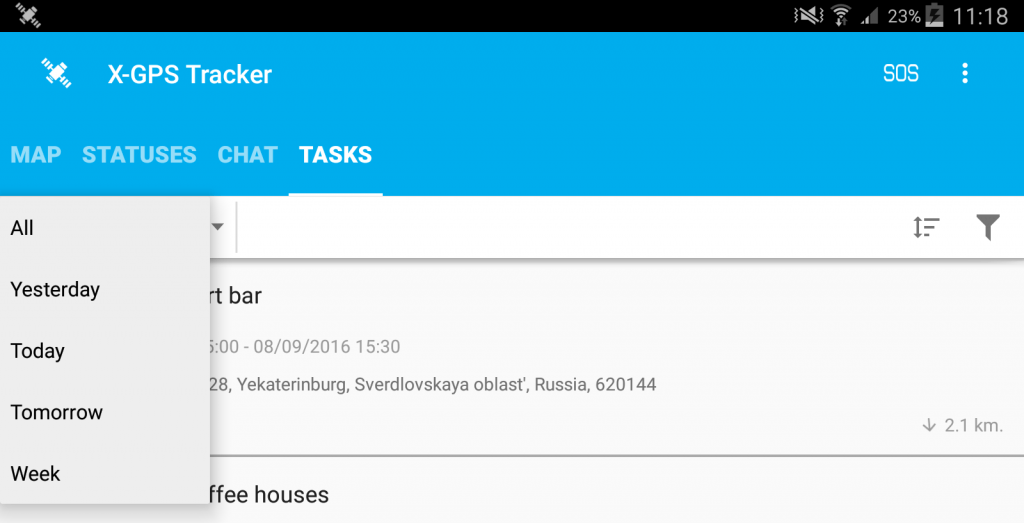
An employee can see completed tasks, current and planned ones. Just select the desired day or time interval.

Sorting by distance, time and status

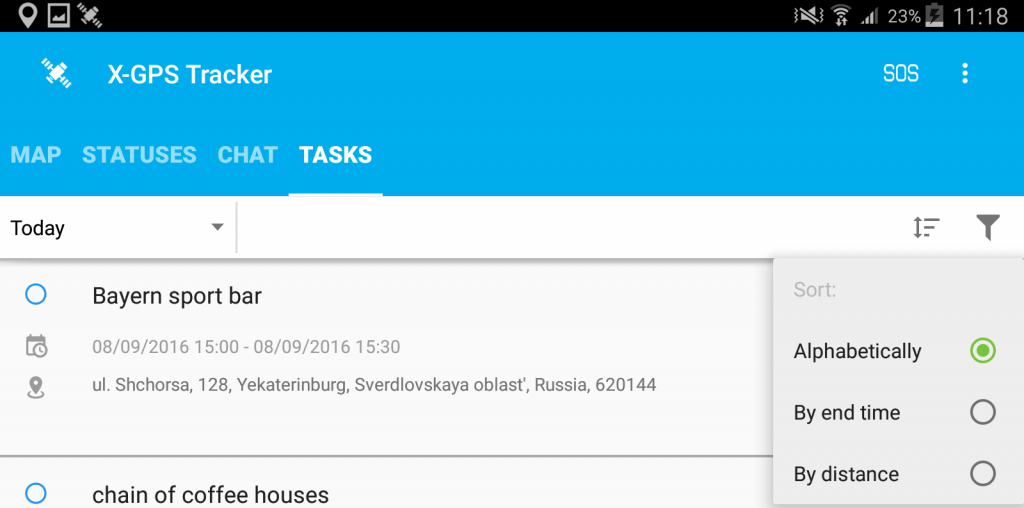
It is also possible to sort the list of tasks alphabetically, by time or by distance from a performer. You should just choose the desired feature in the settings.

You may sort tasks by statuses: finished, unfinished or with any status


    • Related Articles

    • X-GPS Tracker - Check-in Instructions

      The “Check-in” feature allows you to fix your location on the map, attach up to 9 photos and add a comment. Field employees using X-GPS Tracker can report on visiting checkpoints, report on work performed, and also to transmit more detailed ...
    • X-GPS Tracker - Android Instructions

      Download Download the application from the Google Play Store, just search "X-GPS Tracker". 1. Open the X-GPS Tracker app and type in the ID code and select "OK":   How to find the ID code?  To find the 12 digit ID code, you must log in to your ...
    • X-GPS Tracker - IOS Instructions

      Download Download the application from the iOS App Store, just search "X-GPS Tracker". 1. Open the X-GPS Tracker app and type in the ID code and select "OK":  How to find the ID code?  To find the 12 digit ID code, you must log in to your Connecttrak ...
    • X-GPS Monitor for Android

      Our mobile app, X-GPS Monitor for Android helps you stay aware of real-time objects' location and telemetry using your Phone or Tablet. Basic Features Location of the objects online The track history for any period Your location on a map ...
    • Sending Tasks to an Employee

      Each task is a directive to visit a location at a particular date and time, and perform actions or simply make a delivery. Tasks can be assigned to employees, the system then checks what tasks have been completed, failed or completed with delay, how ...